Chrome Extension

Download the current version of the Google Chrome Extension here

Install guide

  1. Download the file that contains the plugin for Google Chrome (only fits Google Chrome)
  2. Unpack the file. This will give you a new folder, which contains all the source files for the Google Chrome plugin.
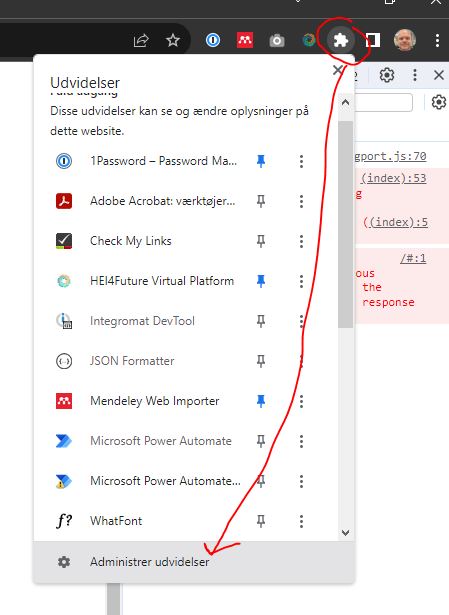
  3. Open Google Chrome and go to "Extensions". This is the small "puzzle piece" in the upper right corner of your browser. You can also use the 3 small dots in the upper right hand corner. You may also copy/paste the code below directly into the address bar. Please see the screenshots below for more.
    chrome://extensions
  4. Enable "Developer mode" - the toggle button in the upper right corner (see screenshot below). This will enable the buttons for installing own plugins.
  5. You now see a list of all plugins in your Google Chrome.
  6. Click the button "Install unpackaged" (see screenshot below) in the left hand corner of the current extension page.
  7. Since the hei4future plugin is unpackaged you need to navigate to the folder where you unpackaged the plugin (see previous step).
  8. The plugin is now installed and you may start use it.
  9. When browsing a web page you may now access the plugin in the upper right hand side of the browser, by clicking the hei4future icon.
  10. Note: for easy access you can "pin" the plugin. (see screenshot below)
  11. Note: you need to login to the plugin. Simply use your organization email - if questions send email to: Rene (reb@ucn.dk) or Brian (brhv@ucn.dk)

Upgrade of Chrome Extension

This section describes how to update an already installed Chrome Extension to a new version
  1. Download the file that contains the plugin and extract it into the folder with the existing chrome extension, overwrite the existing files.
  2. Go to the "Manage Plugin" page in your Google Chrome browser. This is done by clicking the "puzzle piece" in the settings of your browser and choose: "Manage Extensions". You can also paste the below code into your browser:
    chrome://extensions
  3. If you have unpacked the new files in the same location as the existing extension then all you need to do is to hit "Reload". And the plugin is now updated. (see screenshot below)

Screenshots

How to open the "Manage Extensions" page in Google Chrome
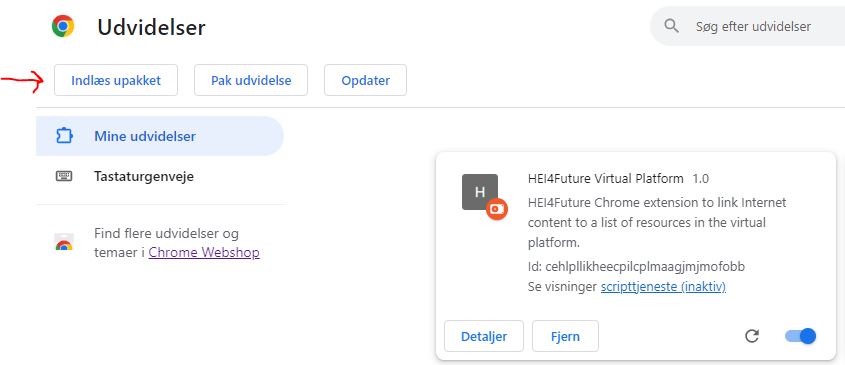
How to load an unpacked Google Chrome extension.
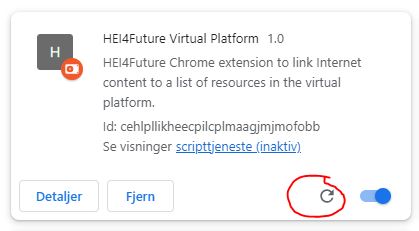
How to reload a plugin after the files have been updated.
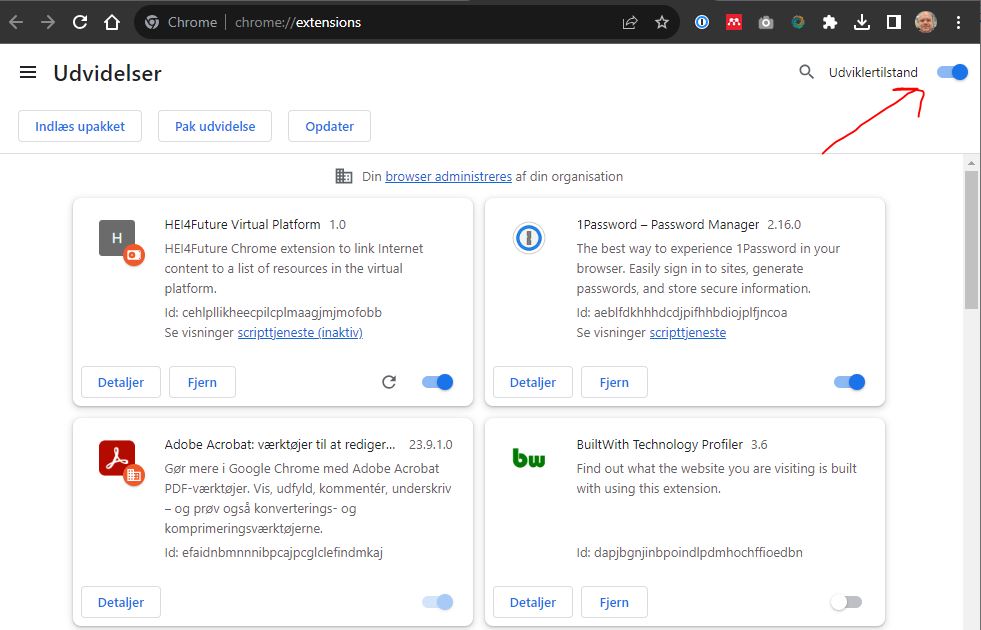
How to enable developer mode in Google Chrome.
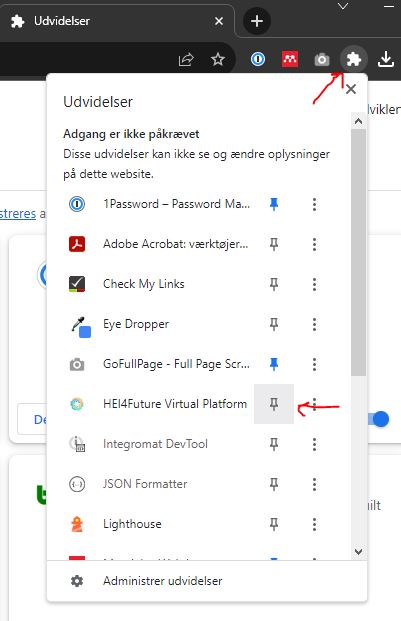
How to pin a plugin for easy access